ReCurr Tutorial Series — Part 1: Getting Started
Welcome to the ReCurr Standard tutorial series. This is Part 1 of 8, covering everything you need to get ReCurr installed and ready on your WooCommerce store.
By the end of this tutorial, you will have ReCurr installed, your license activated, and your basic settings configured — ready to create your first subscription product.
Before You Begin
Make sure your hosting environment meets these requirements:
- WordPress 5.8 or higher
- WooCommerce 5.0 or higher
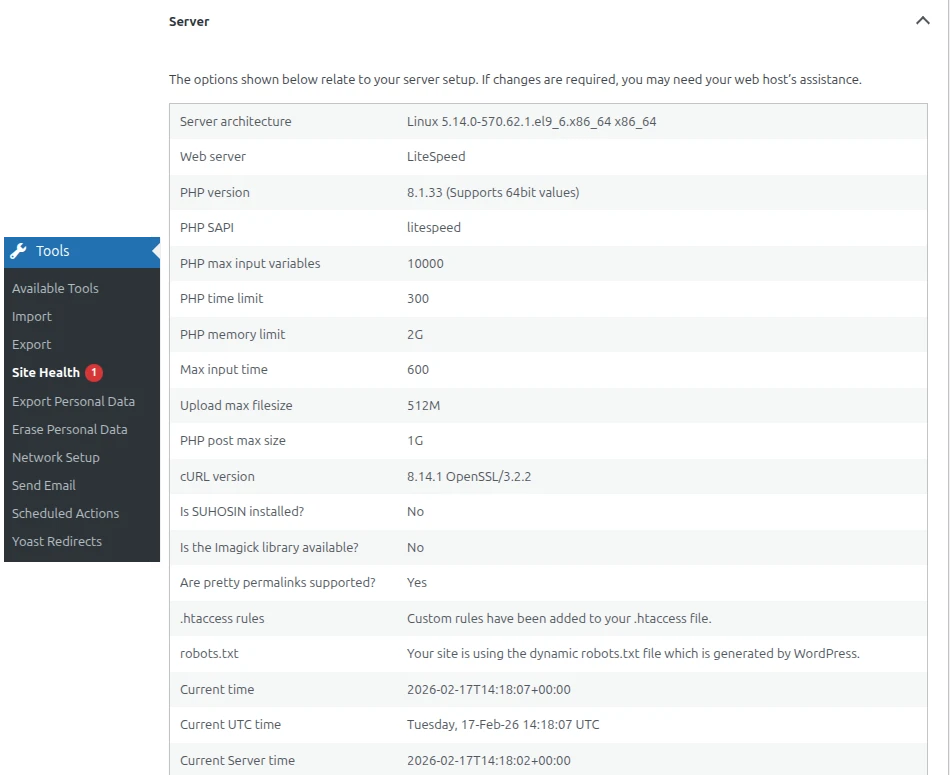
- PHP 8.1 or higher (from ReCurr 2.8.8 — on older PHP, WordPress keeps your site on 2.8.7)
- MySQL 5.7+ or MariaDB 10.3+
- SSL Certificate — your site must use HTTPS (required for payment processing)
If you’re unsure about your server specifications, go to Tools > Site Health in your WordPress dashboard and check the Info tab.
Step 1: Download the Plugin
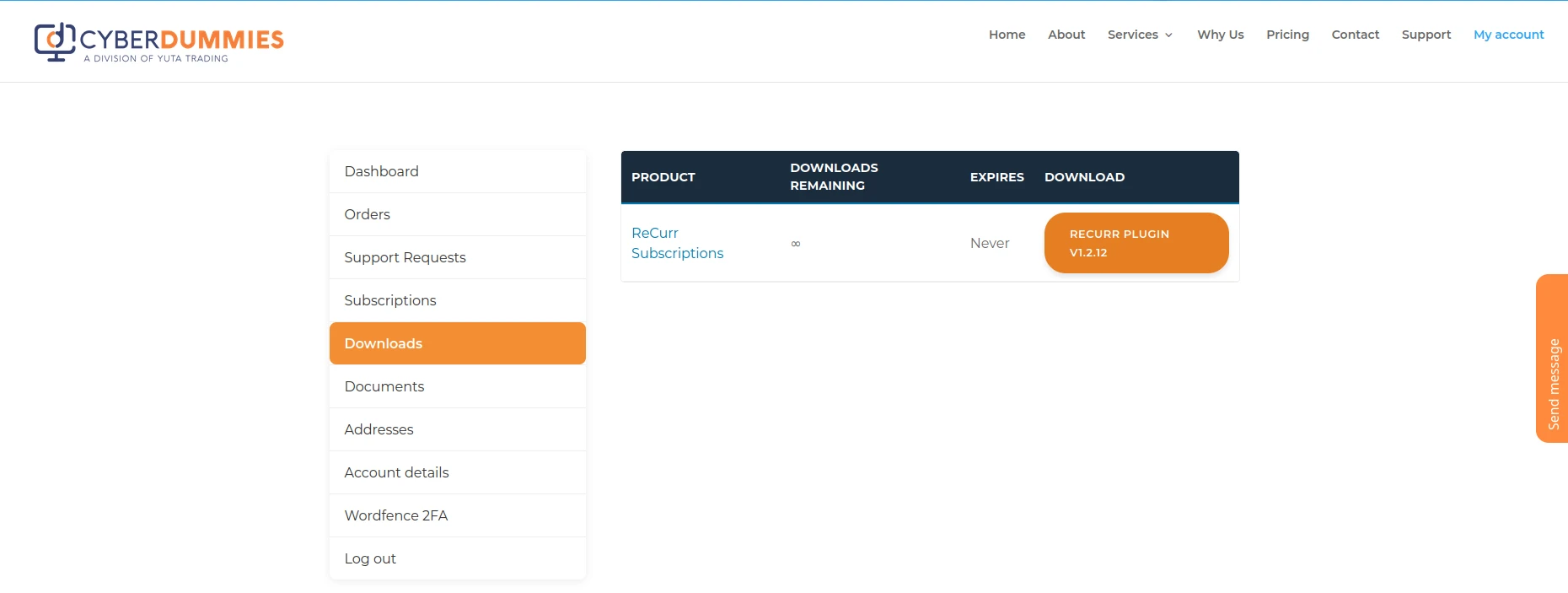
Log in to your account at cyberdummies.co.za/my-account and download the latest ReCurr plugin ZIP file from your orders or downloads area.
The file will be named something like recurr-v1.2.12.zip.
Step 2: Upload and Install
- In your WordPress dashboard, go to Plugins > Add New
- Click Upload Plugin at the top of the page
- Click Choose File and select the
recurr-v1.2.12.zipfile you downloaded - Click Install Now
- Wait for the installation to complete
Step 3: Activate the Plugin
Click Activate Plugin after the installation completes.
Once activated, you will see a new Subscriptions menu item in your WordPress dashboard sidebar, just below the WooCommerce menu.
Step 4: Activate Your License
This is an important step. ReCurr requires a valid license key before the plugin features become available.
- After activation, you will see a notice at the top of your dashboard: “ReCurr: License activation required”
- Click the link in the notice, or navigate to Subscriptions > License
- Enter your license key (provided in your purchase confirmation email from CyberDummies)
- Click Activate License
- You should see a success message confirming your license is active
If you have not received your license key, contact CyberDummies support at [email protected].
Step 5: Configure Basic Settings
Now that your license is active, let’s configure the essential settings.
Navigate to Subscriptions > Settings in your dashboard.
General Tab
The General tab contains one key setting:
- Failed Payment Retry Count — The number of times ReCurr will automatically retry a failed payment before placing the subscription on hold. The default is 3, which works well for most stores. You can set this between 1 and 10.
Manual EFT Tab
If you plan to offer manual EFT (bank transfer) payments for corporate or enterprise clients, configure this tab now. If not, you can skip this for now and come back to it later (covered in detail in Tutorial 5).
The Manual EFT tab has two sections:
Invoice Schedule:
- Invoice Day — The day of the month when invoices are automatically generated. Default is the 25th, which aligns with South African business billing practices (invoice on the 25th, payment due on the 1st).
Bank Details:
- Bank Name (e.g., FNB)
- Account Name (e.g., Your Business Name (Pty) Ltd)
- Account Number
- Branch Code
- Account Type (Cheque, Savings, or Transmission)
These bank details appear on the invoices sent to your manual EFT customers.
Click Save Settings when done.
Step 6: Verify WooCommerce is Ready
ReCurr works alongside WooCommerce, so make sure the basics are in place:
-
Go to WooCommerce > Settings > General
- Confirm your store address and currency (ZAR for South African Rand) are correct
-
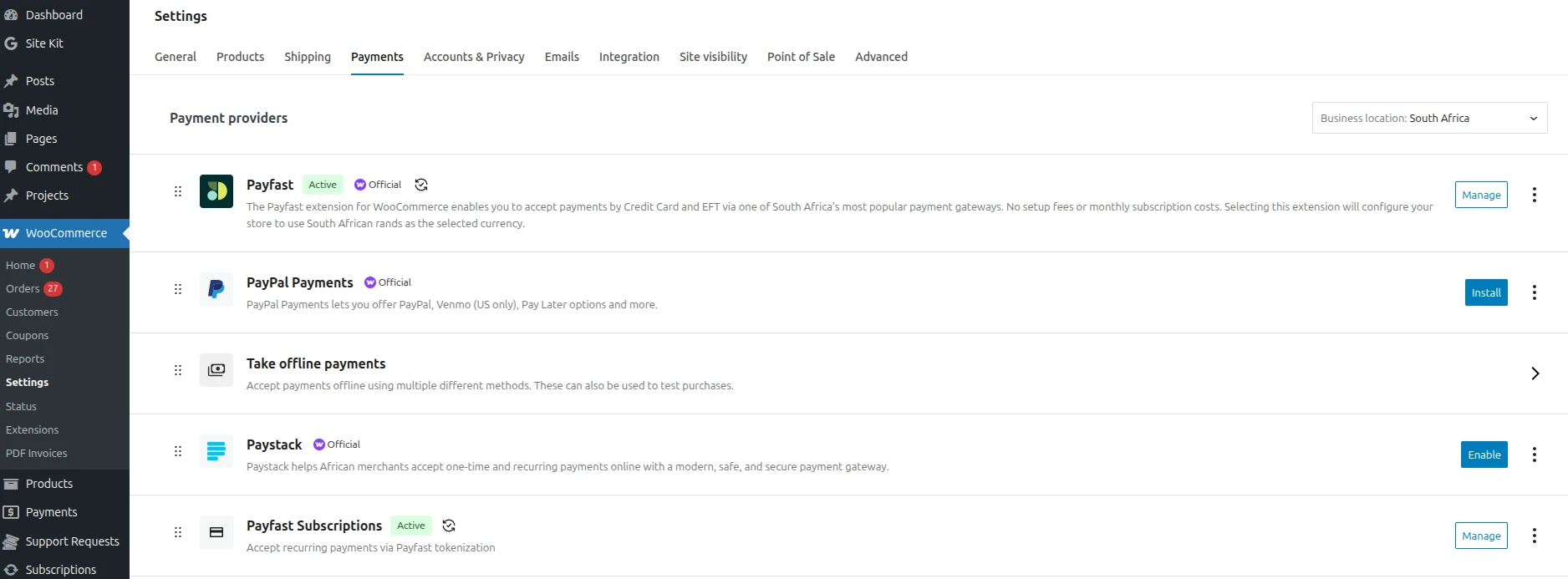
Go to WooCommerce > Settings > Payments
- You should see PayFast Subscriptions listed as a payment gateway
- We will configure this in detail in Tutorial 3, but for now just verify it appears in the list
Step 7: Quick Orientation
Here’s a quick overview of what you now have available in your dashboard:
Subscriptions Menu
| Menu Item | What It Does |
|---|---|
| All Subscriptions | View, search, and filter all customer subscriptions |
| Settings | Configure retry count, invoice schedule, and bank details |
| License | Manage your ReCurr license key |
What You’ll See in All Subscriptions
The subscription list shows:
- Subscription ID
- Status (Active, On Hold, Cancelled, Expired, Pending)
- Customer name
- Product
- Total amount
- Next Payment / Next Invoice date
- Related order
This page will be empty right now — that’s expected. It will populate as customers subscribe to your products.

What’s Next?
Your ReCurr plugin is now installed, licensed, and configured with basic settings. In the next tutorial, we’ll create your first subscription product.
Up next: Tutorial 2: Creating Subscription Products — Setting up products with recurring billing, configuring billing periods, and applying discounts.
Quick Checklist
Use this checklist to confirm you’ve completed all steps:
- [ ] Plugin ZIP downloaded from cyberdummies.co.za/my-account
- [ ] Plugin uploaded and installed via Plugins > Add New > Upload
- [ ] Plugin activated
- [ ] License key entered and activated
- [ ] Failed Payment Retry Count reviewed (default: 3)
- [ ] Manual EFT bank details entered (if applicable)
- [ ] WooCommerce currency and store address confirmed
- [ ] PayFast Subscriptions gateway visible in WooCommerce Payments list
Need Help?
- Email: [email protected]
- Support Hours: Monday to Thursday, 9:00 AM – 4:00 PM (SAST)
Friday, 09:00 AM – 12:00 PM (SAST) - Website: cyberdummies.co.za/recurr
This is Part 1 of the ReCurr Standard Tutorial Series. All tutorials are available at cyberdummies.co.za/recurr.
| Tutorial | Topic |
|---|---|
| 1. Getting Started | Install, activate, and initial configuration (you are here) |
| 2. Creating Subscription Products | Billing periods, pricing, and discounts |
| 3. Configuring PayFast | Gateway credentials, sandbox vs live, ITN setup |
| 4. Managing Subscriptions | Admin dashboard, status management, details |
| 5. Manual EFT Subscriptions | Corporate clients paying via bank transfer |
| 6. Customer Experience | Checkout flow and My Account subscription management |
| 7. Invoicing | Invoice generation, PDF attachments, email delivery |
| 8. Settings Reference | Complete reference of all available settings |
Please see below if you have subscribed to the ReCurr Plus-tier:
Plus-tier tutorials (Plus / Pro licence required to follow along):
- Plus Tutorial 1: Billing Cycle Toggle
- Plus Tutorial 2: Flexible Trials
- Plus Tutorial 3: Quarterly Discounts
- Plus Tutorial 4: Plan Switching
- Plus Tutorial 5: Cancellation, Refund and Retention
- Plus Tutorial 6: Pause and Resume
- Plus Tutorial 7: Variable Subscription Products
- Plus Tutorial 8: Troubleshooting Variable Subscriptions
We Are Here To Help!
Office
Queenswood
Pretoria
SA
Hours
M-T: 9am – 4pm
F: 9am – 12pm
S-S: Closed
Email Us
Let's Chat