ReCurr Tutorial Series — Part 2: Creating Subscription Products
Welcome back to the ReCurr tutorial series. In Part 1 we installed and configured the plugin. Now we’ll create your first subscription product.
ReCurr turns standard WooCommerce Simple products into subscription products. There’s no separate product type — you simply enable the subscription option on any Simple product and configure the billing details.
Before You Begin
Make sure you have completed Tutorial 1: Getting Started and that:
- ReCurr is installed and activated
- Your license key is active
- Basic settings have been configured
Step 1: Create a New Product
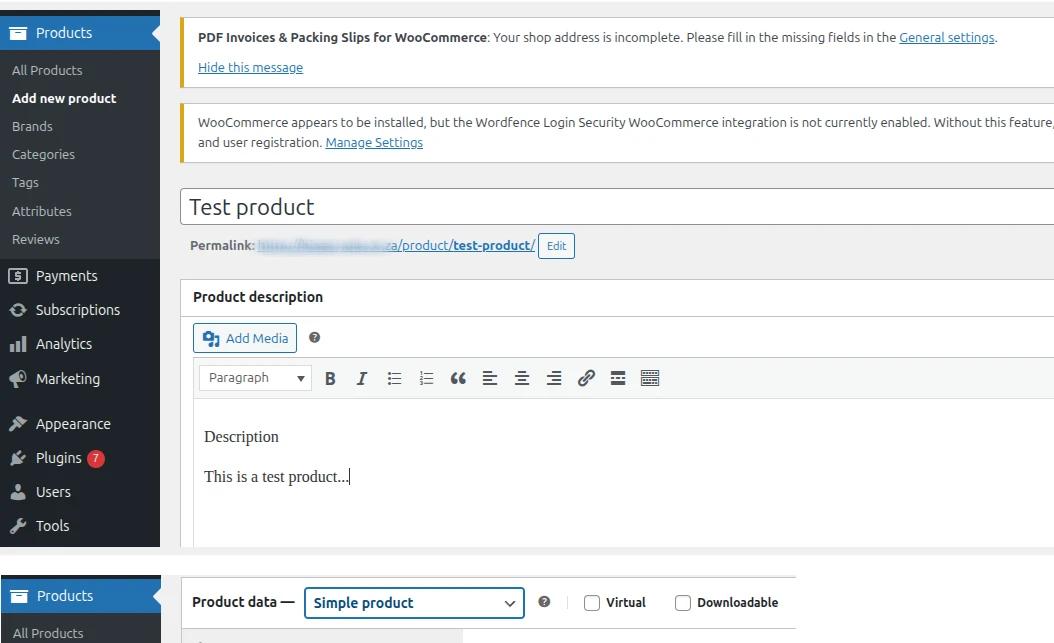
- In your WordPress dashboard, go to Products > Add New
- Enter a Product name (e.g., “Website Maintenance – Monthly”)
- Add a Product description if needed — this appears on the product page for your customers
- Scroll down to the Product data section
Make sure the product type dropdown (top-left of the Product data box) is set to Simple product. ReCurr subscription fields appear on Simple products — and, with ReCurr Plus and the Variable subscription products setting on (v2.8.0), on Variable products too, where each option can be its own subscription: see Plus Tutorial 7: Variable Subscription Products.
Step 2: Set the Regular Price
In the General tab of the Product data section:
- Enter the Regular price — for a monthly product this is the monthly price (e.g., 499.00 for R499 per month)
For a monthly product this price is also the base for pro-rata amounts. How it is used for a quarterly or annual product depends on the discount settings — see Step 5 and Step 6.

Step 3: Enable the Subscription
Still in the General tab, look for the subscription fields below the pricing fields:
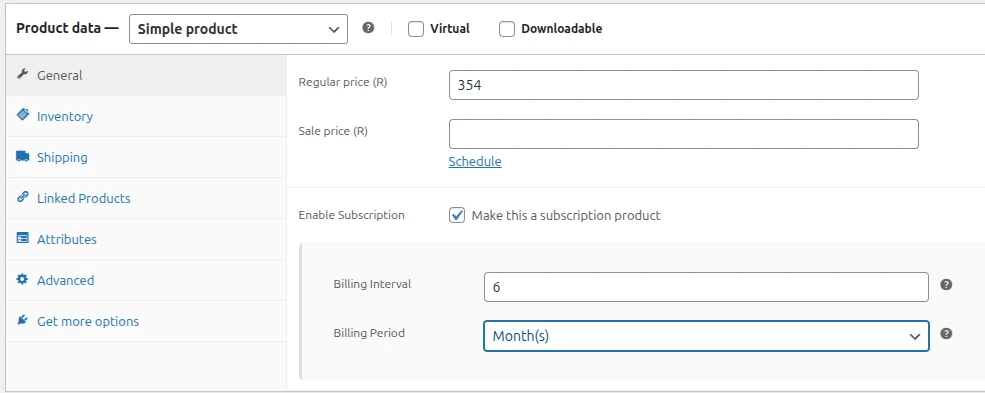
- Tick the Enable Subscription checkbox — “Make this a subscription product”
- Additional subscription fields will appear once you tick this checkbox


Step 4: Configure the Billing Interval
The Billing Interval field determines how often the customer is billed:
- Enter 1 to bill every period (e.g., every 1 month)
- Enter 2 to bill every second period (e.g., every 2 months)
- The default is 1, which is correct for most subscription products
Step 5: Select the Billing Period
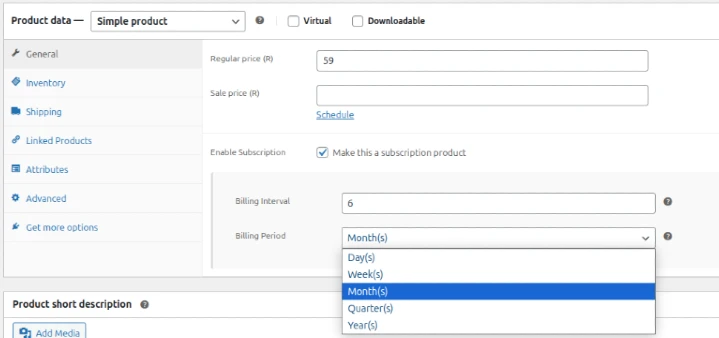
The Billing Period dropdown determines the billing frequency. The available options are:
| Billing Period | What It Means | Example |
|---|---|---|
| Day(s) | Billed daily | R10/day |
| Week(s) | Billed weekly | R125/week |
| Month(s) | Billed monthly | R499/month |
| Quarter(s) | Billed every 3 months | R1,497/quarter |
| Year(s) | Billed annually | R5,988/year |
Select the appropriate period for your product. The default is Month(s).
What is charged per period (v2.7.29): without a discount or custom price, the Regular price is charged once per billing period, as it stands — to bill R5,988 a year, enter 5988.00 as the Regular price of a Year(s) product. To enter a monthly price and have ReCurr work out the year, tick Enable Annual Discount (Step 6, Plus).
Step 6: Annual Discount (Optional — Annual Products Only)
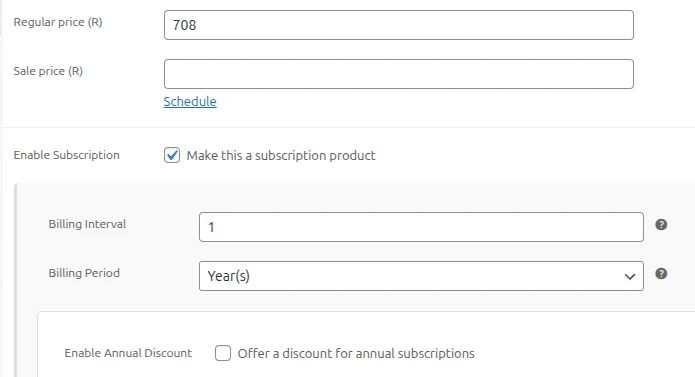
If you selected Year(s) as the billing period, an additional section appears allowing you to offer customers a discount for committing to an annual subscription.
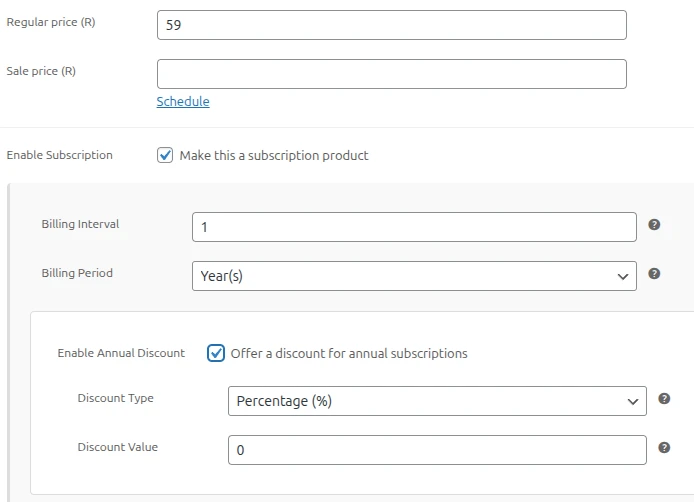
6a. Enable the Annual Discount
- Tick the Enable Annual Discount checkbox — “Offer a discount for annual subscriptions”
- Two additional fields will appear: Discount Type and Discount Value
With the discount enabled, the Regular price is treated as the monthly base: the customer is charged twelve times it, less the discount, every year — on the product page, at checkout and on every renewal.
6b. Select the Discount Type
Choose from:
| Discount Type | Description | Example |
|---|---|---|
| Percentage (%) | A percentage off the annual total | 15% off |
| Fixed Amount (R) | A fixed Rand amount off the annual total | R500 off |
The default is Percentage (%).
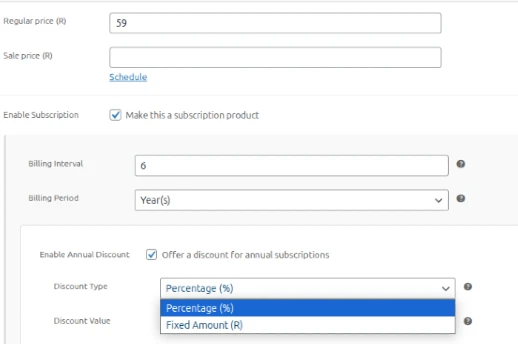
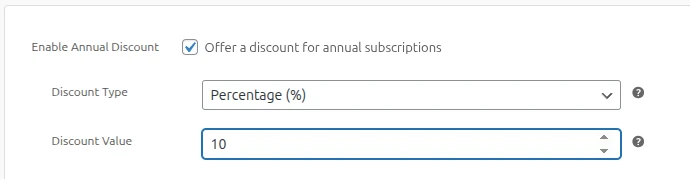
6c. Enter the Discount Value
Enter the discount amount:
- For Percentage: enter the number without the % sign (e.g., 15 for a 15% discount)
- For Fixed Amount: enter the Rand value (e.g., 500 for R500 off)
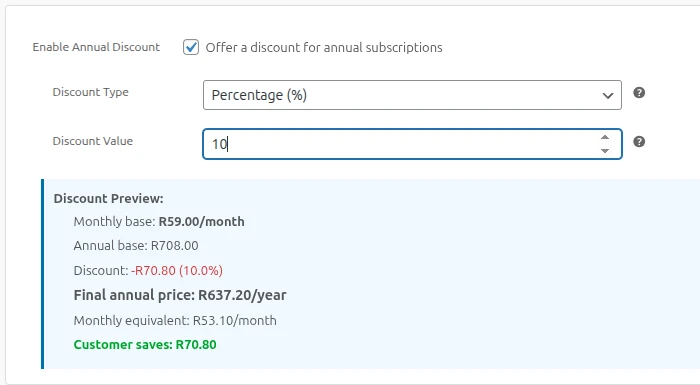
6d. Review the Discount Preview
As you enter the discount details, a live preview box appears below showing:
- Monthly base price
- Annual base price (monthly x 12)
- Discount amount
- Final annual price after discount
- Monthly equivalent of the discounted annual price
- Total customer savings
Use this preview to verify the pricing looks correct before saving.
Step 7: Publish the Product
Once you’re happy with the subscription settings:
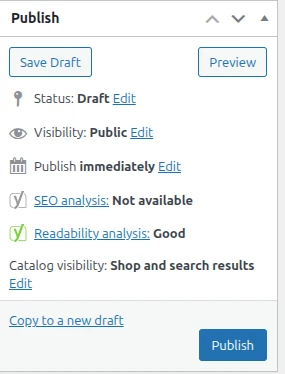
- Scroll up to the Publish panel on the right-hand side
- Click Publish (or Update if editing an existing product)
- Your subscription product is now live on your store
Step 8: Verify on the Frontend
Visit your product page on the store frontend to verify everything looks correct:
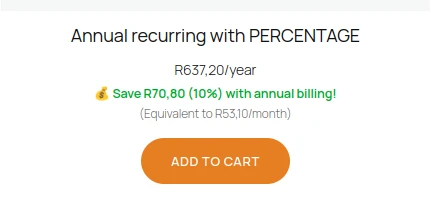
- The product price should display with the billing period (e.g., “R499.00 / month”)
- For annual products with a discount, the savings information should be visible to customers
Example: Creating a Monthly Hosting Subscription
Here’s a quick walkthrough for a typical monthly product:
| Setting | Value |
|---|---|
| Product name | Website Hosting – Monthly |
| Regular price | 299.00 |
| Enable Subscription | Ticked |
| Billing Interval | 1 |
| Billing Period | Month(s) |
Result: Customers are billed R299.00 every month.
Example: Creating an Annual Plan with Discount
Here’s how to set up an annual product with a 15% discount:
| Setting | Value |
|---|---|
| Product name | Website Hosting – Annual |
| Regular price | 299.00 (monthly base) |
| Enable Subscription | Ticked |
| Billing Interval | 1 |
| Billing Period | Year(s) |
| Enable Annual Discount | Ticked |
| Discount Type | Percentage (%) |
| Discount Value | 15 |
Result: Annual base = R299 x 12 = R3,588. After 15% discount = R3,049.80/year. Customer saves R538.20.
Important Notes
- Simple products — and variable products on Plus (v2.8.0) — ReCurr subscription fields appear on Simple products. With a Plus licence and Subscriptions → Settings → General → Variable subscription products switched on, they also appear on Variable products, so each option (size, plan, buy once or subscribe) can be sold as a subscription — see Plus Tutorial 7: Variable Subscription Products. Grouped and External products never carry subscription fields.
- Regular price = the price of one billing period, unless an annual or quarterly price setting says otherwise (v2.7.29) — For a monthly product the Regular price is the monthly price. For an annual or quarterly product with no discount and no custom price, the Regular price is charged as it stands, once per billing period — enter the yearly (or quarterly) price. With Enable Annual Discount ticked (or the quarterly discount), the Regular price is the monthly base: ReCurr charges twelve (or three) times it, less the discount. A Custom Annual Price or Custom Quarterly Price (Plus) is charged as entered. Whichever applies, the product page, checkout, the recorded subscription amount, trial conversions, manual EFT invoices and plan switches all use the same figure. Products with the billing cycle toggle always use the Regular price as the monthly base.
- One product per billing cycle — If you want to offer the same service as both monthly and annual options, create two separate products (one set to Month, one set to Year with the annual discount). On Plus you can instead use the billing cycle toggle, or (v2.8.0) one variable product with a Monthly and a Yearly option (Plus Tutorial 7: Variable Subscription Products, Example 2).
- Pro-rata billing — By default, monthly subscribers who sign up mid-month are charged a pro-rated amount for the remaining days, with their first full payment aligned to the 1st of the following month. This is a store-wide setting (Subscriptions → Settings → General → Pro-rata billing, v2.4.30) — switch it Off to charge the full price on signup and renew on the same calendar day each month (anniversary billing). It applies to all monthly products; it is not configured per product.
What’s Next?
Your subscription product is created and ready for customers. But before anyone can pay, you need to configure the PayFast payment gateway.
Up next: Tutorial 3: Configuring PayFast — Gateway credentials, sandbox vs live, and ITN callback setup.
Quick Checklist
- [ ] New Simple product created with a name and description
- [ ] Regular price set (your monthly base price)
- [ ] “Enable Subscription” ticked
- [ ] Billing Interval set (default: 1)
- [ ] Billing Period selected (Day/Week/Month/Quarter/Year)
- [ ] Annual discount configured (if applicable)
- [ ] Discount preview reviewed (if applicable)
- [ ] Product published
- [ ] Frontend product page verified
Need Help?
- Email: [email protected]
- Support Hours: Monday to Thursday, 9:00 AM – 4:00 PM (SAST)
Friday, 09:00 AM – 12:00 PM (SAST) - Website: cyberdummies.co.za/recurr
This is Part 2 of the ReCurr Tutorial Series. All tutorials are available at cyberdummies.co.za/recurr.
| Tutorial | Topic |
|---|---|
| 1. Getting Started | Install, activate, and initial configuration |
| 2. Creating Subscription Products | Billing periods, pricing, and discounts (you are here) |
| 3. Configuring PayFast | Gateway credentials, sandbox vs live, ITN setup |
| 4. Managing Subscriptions | Admin dashboard, status management, details |
| 5. Manual EFT Subscriptions | Corporate clients paying via bank transfer |
| 6. Customer Experience | Checkout flow and My Account subscription management |
| 7. Invoicing | Invoice generation, PDF attachments, email delivery |
| 8. Settings Reference | Complete reference of all available settings |
We Are Here To Help!
Office
Queenswood
Pretoria
SA
Hours
M-T: 9am – 4pm
F: 9am – 12pm
S-S: Closed
Email Us
Let's Chat